Home → Cataloging Items/Copies and Holdings → Customized Item Messages → Creating New Item Tags
7.3. Creating New Item Tags
Last Updated 02/02/2026
Bib Catalogers May Create New Item Tags
On This Page
While Item Catalogers may add existing Item Tags to item records, only bibliographic catalogers may create new alerts. They may do so in the Local Admin menu. They may also edit and delete existing tags.
Item Tags are associated with a Item Tag Type and are used to configure the list of tags that can be applied to copies, such as a list of memorial or donation labels, that are applicable to a particular organizational unit.
Create Item Tags
-
Go to Administration→Local Administration→Item Tags.
-
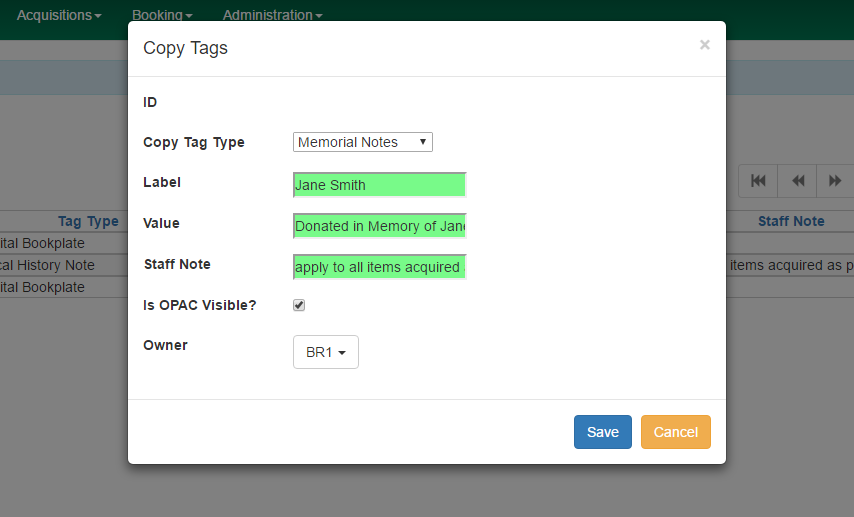
In the upper left hand corner, click New Record. A dialog box will appear. Assign the following to create a new Item Tag:
-
Item Tag Type: select the Item Tag Type with which you want to associate the new Item Tag.
-
Label: assign a label to the new item tag.
-
Value: assign a value to the new item tag. This will display in the catalog.
-
Staff Note: a note may be added to guide staff in when to apply the item tag.
-
Is OPAC Visible?: If a item tag is OPAC Visible, it can be searched for and viewed in the OPAC and the staff catalog. If a item tag is not OPAC Visible, it can only be searched for and viewed in the staff catalog.
-
Owner: select the organization unit at which this tag can be seen and used.
-
-
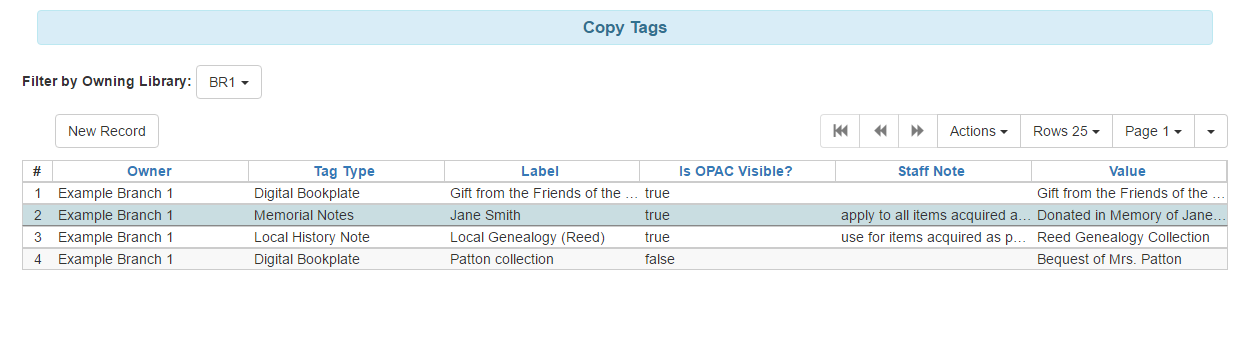
Click Save and the new Item Tag will appear in the list.
Managing Item Tags
Editing Tags
Existing item tags can be edited by selecting a tag and clicking Actions→Edit Record or right-clicking on a tag and selecting Edit Record. The dialog box will appear and you can modify the item tag. Click Save to save any changes. Changes will be propagated to any items that the tag has been attached to.
Deleting Tags
Existing item tags can be deleted by selecting a tag and clicking Actions→Delete Record or right-clicking on a tag and selecting Delete Record. Deleting a tag will delete the tag from any items it was attached to in the catalog.
This page was: Helpful |
Not Helpful