Home → Cataloging Bibliographic Records → Bibliographic Record Buckets → Record Bucket Actions
12.4. Record Bucket Actions
Last Updated 02/18/2026
Individual Record Bucket Actions
On This Page
Several actions are available in record buckets, including opening, exporting, merging, and transferring title holds.
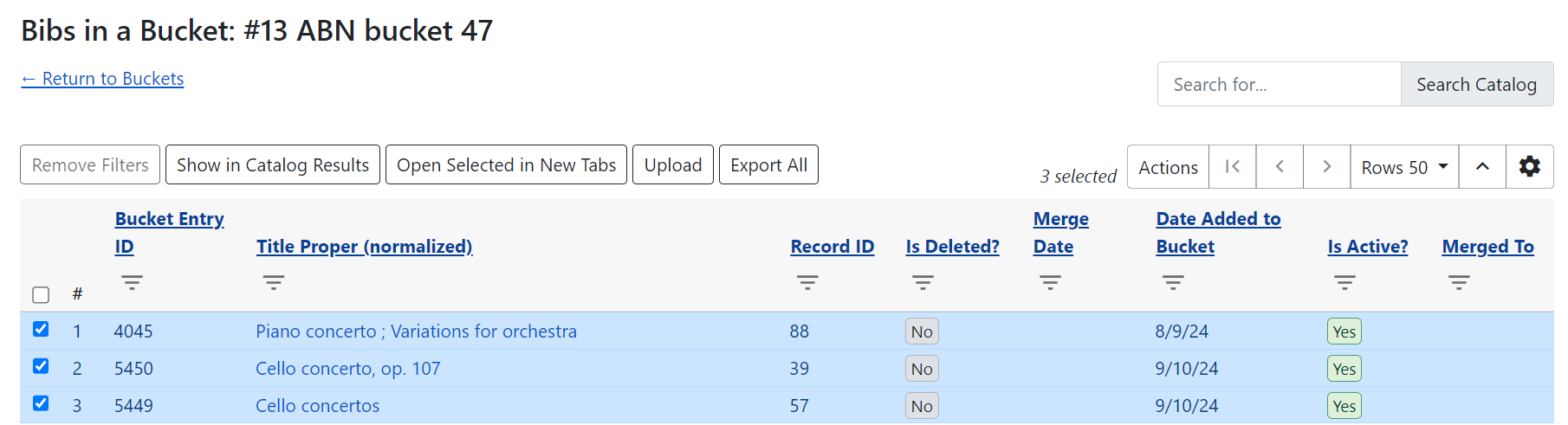
To access an individual bucket, click on its title in the main buckets interface. This will take you to the Bibs in a Bucket view, where you can see all records contained in that bucket and perform actions on them. This grid has filters and sort options available on each column, and as with other grids you can save your grid view.
This interface has several actions available, some via buttons and some via the actions menu.
Button Actions
-
Remove Filters - this will remove all grid filters that are in place.
-
Show in Catalog Results - this will open all selected records in a staff catalog search results page. This will open in a new tab.
-
Open Selected in New Tabs - this will open each selected record in its own tab, and show you the record detail view for each record.
-
Upload - this opens the Upload Records modal described above.
-
Export All - this exports all members of the bucket in either USMARC or MARCXML format. If you select this option you will see a modal with export options and the ability to confirm before you process the export.
For more information on the Search Catalog box on the right of the interface, see the above description.
Action Menu Options
Additional actions are available in the actions menu, and all may be performed on one or several records, with the exception of Merge Selected Records, which is explained in greater detail in the How to Merge Records page.
Additional actions include:
-
Add Selected Records to a Different Bucket - this will copy selected records from the current bucket into a new or existing bucket for which you have edit permissions
-
Delete Selected Records from Catalog - if you have appropriate delete permissions you can delete records from the catalog. Note that this will only work for 'empty' records - any records with holdings or items attached will be blocked from deletion.
-
Export Selected Records - this functions the same as Export All described above, but allows you to select specific records for export.
-
Merge Selected Records - this is described in detail in the next section.
-
Move Selected Records to a Different Bucket - this will move selected records from the current bucket into a new or existing bucket for which you have edit permissions
-
Transfer Title Holds - this will transfer all title-level holds from the selected record to a pre-selected holds transfer destination record. For more information on setting a holds transfer destination, please see the Holds Management documentation.
Columns in the Standard View
-
Bucket Entry ID - a unique identifier related to the record + bucket combined. The presence of this ID uniquely identifies each record as a bucket member, even if a record is added to the bucket twice. This allows users to add or remove duplicate records from the bucket.
-
Title Proper (normalized) - the title of the bibliographic record. It is a hyperlink, and clicking it will take you to the record detail view for that bibliographic record. This will open in the same tab.
-
Record ID - the system bibliographic record ID
-
Relative Position - the position of the record in a bookbag
-
Is Deleted? - indicates if the bibliographic record is deleted or not
-
Merge Date - the date a bibliographic record as merged
-
Author (normalized) - the author of the bibliographic record
-
Bucket ID - the ID of this bucket
-
Date Added to Bucket - the date the bibliographic record was added to this bucket
-
TCN Source - the source of the bibliographic record’s TCN (Title Control Number)
-
TCN Value - the bibliographic record’s TCN (Title Control Number)
-
Record Creation Date/Time - the creation date of the bibliographic record
-
Last Edit Date/Time - the date the bibliographic record was last edited
-
Is Active? - indicates if a bibliographic record is active or not
-
Merged To - if the record has been merged, this will show the Record ID of the bibliographic record which was the merge destination (AKA Lead Record). This is hyperlinked and clicking on it will take you to the lead record.
-
Overall Record Quality - the calculated quality score of the bibliographic record
This page was: Helpful |
Not Helpful